Downloads
 NetMirror App
NetMirror App Download for Android, TV, iPhone and PC
Two of these are real installs; two are not. Android and Android TV get an APK you sideload. On iPhone and on a computer there is nothing to install at all — the same library opens in the browser. Pick your device below and the right route is one tap away.
- Free
- No Play Store
- Up to 4K
- Ad-free player
Pick your device
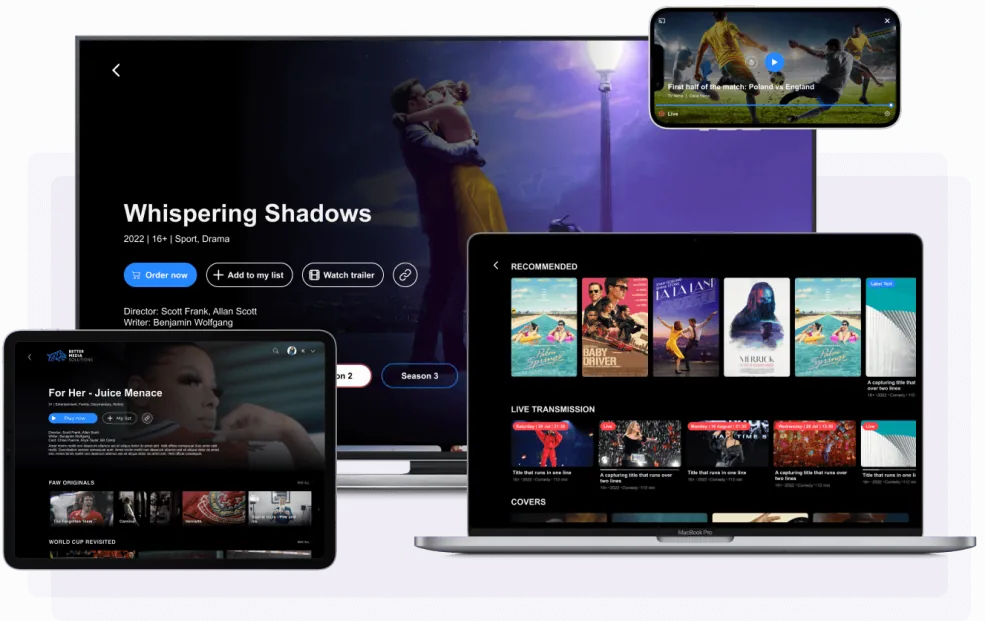
Everything below reaches the same catalogue — eight streaming services stitched into one searchable library. What changes is how you get to it, which is the part most NetMirror app download guides skip over: on two of these devices there is no file to install at all.
 Android
The full app — offline downloads and background play included.
Download APK
Android
The full app — offline downloads and background play included.
Download APK
 Android TV
A separate build for TV, Google TV and Fire Stick, laid out for a remote.
Download TV APK
Android TV
A separate build for TV, Google TV and Fire Stick, laid out for a remote.
Download TV APK
 iPhone & iPad
There is no iOS app. Add the web version to your Home Screen and it runs full-screen.
See the setup
iPhone & iPad
There is no iOS app. Add the web version to your Home Screen and it runs full-screen.
See the setup
 PC & Mac
Nothing to download. Open the address in any browser and press play.
Open in browser
PC & Mac
Nothing to download. Open the address in any browser and press play.
Open in browser
What you are actually installing
The app is a front end for eight catalogues at once — Netflix, Prime Video, JioHotstar, Apple TV+, Sony LIV, Zee5, MX Player and Crunchyroll. One search box covers all of them, so you type a title and find out where it lives instead of opening eight apps in turn.
Inside you get a proper player rather than an embedded frame — speed controls, aspect ratio, subtitles, multiple audio tracks where a title has them, and Picture-in-Picture. Quality climbs to 4K when the source and your connection allow it. There are no ads before or during playback.
Two things the Android app can do that the browser cannot: save titles offline, and keep playing in the background. If neither matters to you, the browser version saves you the install entirely.
Installing on Android
Android blocks installs from outside the Play Store until you allow them. One toggle, about a minute start to finish.
- Download the APK using the button above. Your browser will warn you about the file type — that happens with every APK.
- Open it and allow the source. Android offers a Settings shortcut; turn on “Allow from this source” for the browser you downloaded with.
- Tap Install, then Open. It drops you straight into the library — no account, no setup screen.
Afterwards, go back and switch “Install unknown apps” off again. It costs nothing and closes the door behind you.
Installing on Android TV and Fire Stick
The TV build is a different file from the phone one — same library, but laid out for a remote instead of a touchscreen, with D-pad navigation and larger artwork. Use the TV download button above, not the Android one.
A TV has no browser worth typing URLs into, so the usual route is a sideloading helper:
- Allow unknown sources. Fire Stick: Settings → My Fire TV → Developer Options. Google TV: Settings → Apps → Security & restrictions.
- Install a downloader app from your TV’s own store, then enter the TV APK address in it.
- Install and launch from your apps row. Give it a moment — the file is around 58 MB.
iPhone and iPad
Nothing to download here, and no App Store listing to look for. You open the web version in Safari, add it to your Home Screen once, and from then on it launches full-screen from an icon like any other app — watchlist, player and all.
The full walkthrough with screenshots is on the NetMirror Web page; it takes about a minute.
PC and Mac
Same story. Chrome, Edge, Safari, Firefox and Brave all work, there is no desktop installer, and Picture-in-Picture lets you float the player over your other windows. Open the address in a browser and you are watching.
Before you install
Sideloading is normal on Android — it is how every APK outside the Play Store gets installed — but a few habits are worth keeping.
Use the links on this page
APK mirror sites repackage files and bundle extras. If you did not get it from here or the official site, do not install it.
Turn the permission back off
“Install unknown apps” only needs to be on for the moment you install. Switch it off once you are done.
Check what it asks for
Storage for downloads and network access are expected. Anything asking for contacts, SMS or call logs is not.
Never install a “codec update”
If a page interrupts playback to demand a player update or an extension, close it. No legitimate streaming app needs that.
Prefer no install at all
If you do not need offline downloads, the browser version puts nothing on your device and cannot be tampered with.
Keep Android updated
Play Protect and the OS security patches do a lot of quiet work. Leave them on.
If the install does not go through
- “App not installed” at the end
- Usually an older copy is still present. Uninstall the existing NetMirror app first, then run the new file. If that is not it, check you have a few hundred MB free.
- The download stops partway
- Restart it rather than opening the half-finished file — a truncated APK always fails to parse. The TV build is the larger of the two, so it is the one most likely to be cut short.
- “Parse error” when opening the file
- Either the download is incomplete, or the TV APK has been put on a phone (or the phone APK on a TV). Match the file to the device.
- The browser refuses to download it
- Chrome flags APKs by default. Open the download bar and choose to keep the file. If your browser blocks it outright, try a different one.
- Fire Stick shows nothing after install
- Sideloaded apps do not always appear on the home row. Look in Settings → Applications → Manage Installed Applications, launch it once from there, then move it to the front.
- It installs but will not play anything
- That is usually the source rather than the app. Try a different title first; if nothing plays, switch to the second server in the watch screen.
Frequently asked questions
Is the NetMirror app free?
Yes. There is no purchase, no subscription and no trial that expires. The player does not carry ads either.
Why is it not on the Play Store?
Apps that aggregate streaming catalogues do not meet Google’s distribution rules, so it is published as a direct APK instead. That is why you have to allow installs from outside the store.
Can I install it on an iPhone?
No, and no APK will ever run on iOS. Apple does not permit sideloading, so the browser version is the iPhone route — add it to your Home Screen and it opens full-screen.
Is the TV file the same as the phone one?
No. They are separate builds. The TV version is laid out for a remote and is the larger download at roughly 58 MB. Installing the phone APK on a TV leaves you poking at a touch layout with a D-pad.
Do I need an account?
Not to watch. Signing in is optional and only syncs your watchlist and history between devices.
Can I download titles to watch offline?
Yes, in the Android app — that is one of the two things it does that the browser cannot. Downloads survive being paused and picked up later.
Is sideloading safe?
The mechanism itself is standard Android; the risk lies in where the file came from. Use the links on this page, turn the permission back off afterwards, and keep Play Protect on.
How do I update it later?
There is no Play Store to push updates, so you download the current APK again and install over the top. Your watchlist stays where it is.
NetMirror app download: the short version
Android and Android TV get a real install, and each has its own file — do not mix them up. iPhone and desktop skip the download entirely and run the same library in a browser. Whichever route you take, it is the same eight catalogues behind one search box.