Browser version
 NetMirror Web
Eight streaming libraries in one browser tab
No download, no APK, and on the main address no account either. You open net27.cc, the library loads, and you press play. It works the same on a Windows laptop, a MacBook, an Android phone or an iPad, because the whole thing runs inside the browser you already have.
- Nothing to install
- Any browser
- Up to 4K
- No sign-up
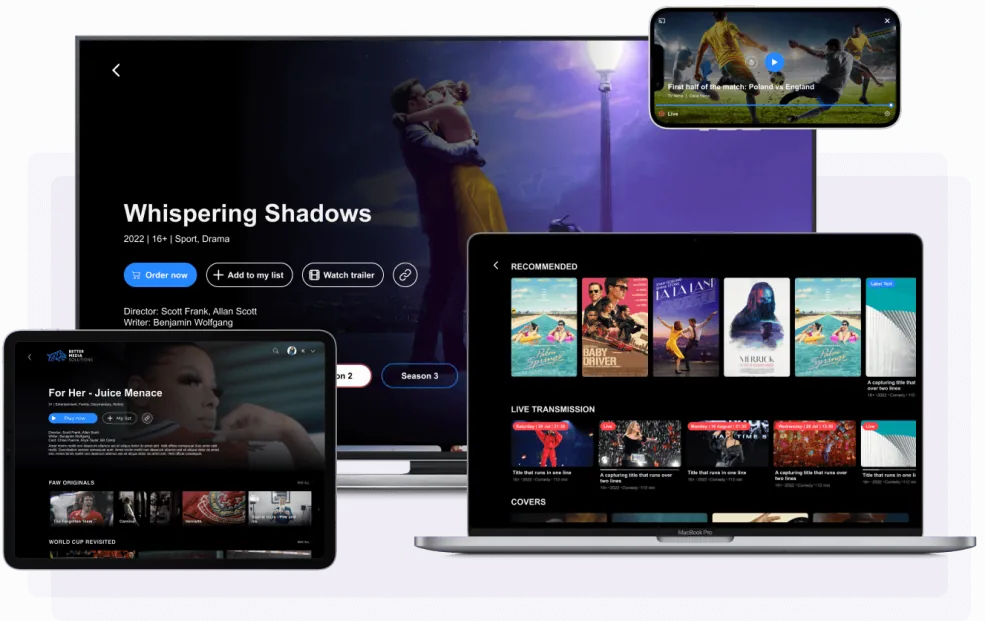
What is NetMirror Web?
NetMirror Web is the browser-based version of the NetMirror app. The Android app is something you download and keep on your phone. The web version is not installed at all — it lives at a URL, and everything happens inside the browser window.
You will see it called the NetMirror Web App in a lot of places, and that name is fair enough: it behaves like an app rather than a web page. There is a persistent watchlist, a proper video player with its own controls, and on a phone you can pin it to the Home Screen so it opens full-screen with no address bar. The difference is only in how it is delivered — nothing is ever installed.
Open the address and you land on a home screen that will feel familiar if you have used any modern streaming service: a row of platform shortcuts across the top, a large featured banner, a Top 10 rail, and a search box. The difference is what sits behind it. Instead of one catalogue, NetMirror Web pulls together eight separate streaming libraries and presents them as a single shelf you can search in one go.
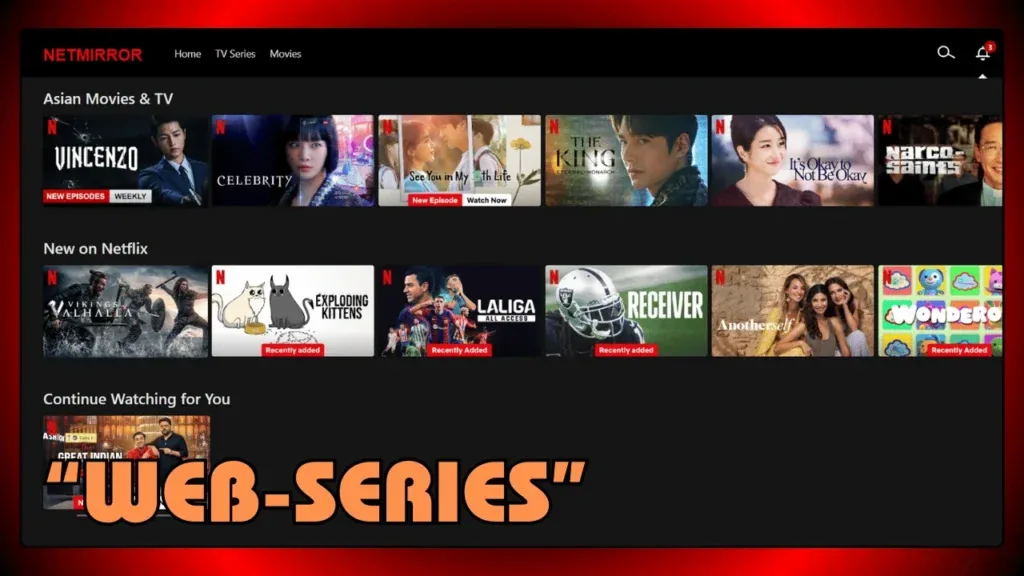
Playback starts in a built-in player, and the quality scales to whatever your connection can handle — up to 4K where the source supports it. You are not asked to register before watching. Guest mode is the default, and signing in is optional, useful only if you want your watchlist and history to follow you between devices.
Which streaming services are included
Eight catalogues are merged into one library. A single search reaches across all of them at once, so you type a title and see where it exists without opening eight tabs.
- Netflix
- Prime Video
- JioHotstar
- Apple TV+
- Sony LIV
- Zee5
- MX Player
- Crunchyroll
Alongside the platform shortcuts there are category rails — Movies, Series, Hindi, Tamil, Telugu, Hollywood, Korean, Anime, Awards and Universe collections — so you can browse by mood rather than by provider.
How to open NetMirror Web
There are two working addresses, and they behave differently — worth knowing before you pick one. Both reach the same catalogue.
The practical difference: net27.cc drops you straight onto the home screen, so it is the one to try first. net77.cc puts a sign-in step in front of the library — the same content is behind it, but you will need an account to get through. Keep it as the fallback for when your ISP has blocked the main address.
Addresses that no longer work
If you saved a link a while ago, check it against this list. These are retired and will not load any more — each was replaced after being blocked.
- iosmirror.cc the old iPhone and iPad address
- pcmirror.cc the desktop-facing address
- netmirror.cc one of the earliest domains
- net2025.cc retired after a block
- net22.cc the address used immediately before the current one
Every device it runs on

PC & Mac
Straight in the browser. Nothing to install, Picture-in-Picture built in.

Android
Browser or the full app, which adds offline downloads and background play.

iPhone & iPad
No App Store needed — add it to your Home Screen and it runs full-screen.

TV & Fire Stick
Android TV, Google TV and Fire Stick get a remote-friendly, D-pad layout.
How to use NetMirror Web on your device
PC and Mac
This is the simplest case. Chrome, Edge, Safari, Firefox and Brave all work, and there is nothing to install or configure.
-
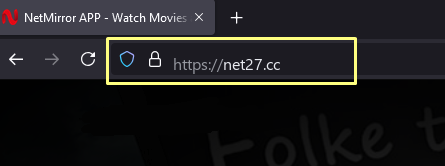
Type net27.cc into your browser. The home screen loads in a couple of seconds and no sign-in prompt appears — that only happens on the net77.cc backup.
-
Press Go to Home. That drops you onto the main screen with the provider row, the featured banner and the Top 10 rail.
- Pick something and press Watch Now. Use the rails or the search box, open a title, and playback starts in the built-in player.
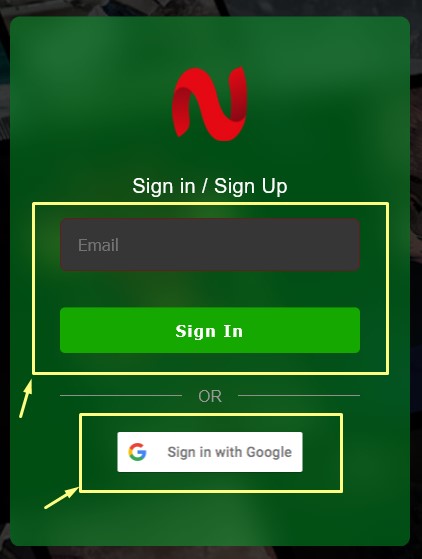
On net27.cc, signing in is entirely optional — the sign-in screen below only turns up if you go looking for it, or if you have landed on the net77.cc backup. Creating an account buys you one thing: your watchlist and viewing history carry over to your other devices. Skip it and everything still plays.
iPhone and iPad
There is no iOS app, so the browser version is the only route. The trick is to add it to your Home Screen once — after that it opens full-screen and behaves much like an installed app.
-
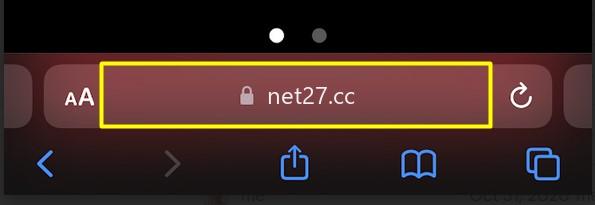
Open the address in Safari. You get the same home screen as every other device.
-
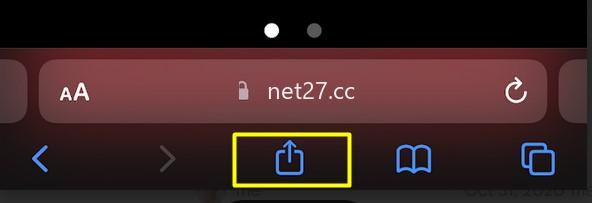
Tap the Share button. It is the square with an arrow pointing out of it, in the toolbar at the bottom.
-
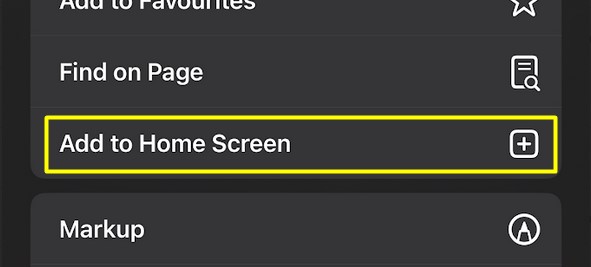
Choose Add to Home Screen. Scroll the share sheet if you do not see it straight away.
-
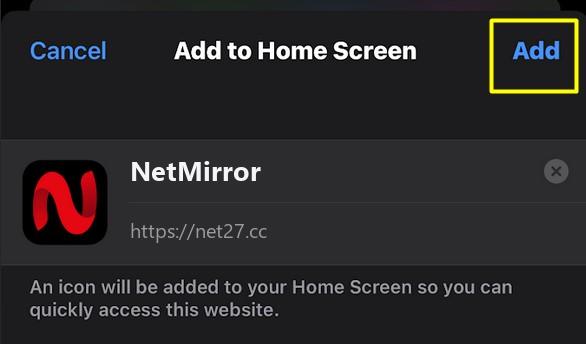
Leave the name as it is and tap Add. This is what makes it launch without Safari’s address bar.
-
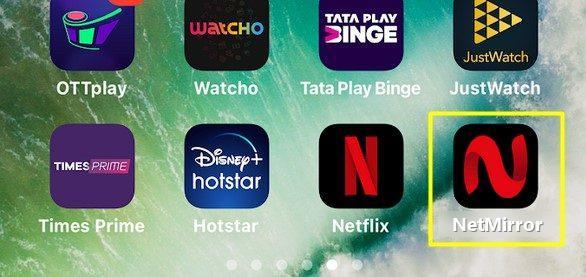
Launch it from your Home Screen. A NetMirror icon appears alongside your other apps and opens full-screen.
Android
Android gives you a choice. The browser route needs no install at all. The app route adds offline downloads and background playback.
- In a browser: open the address in Chrome and press play. That is the whole process.
-
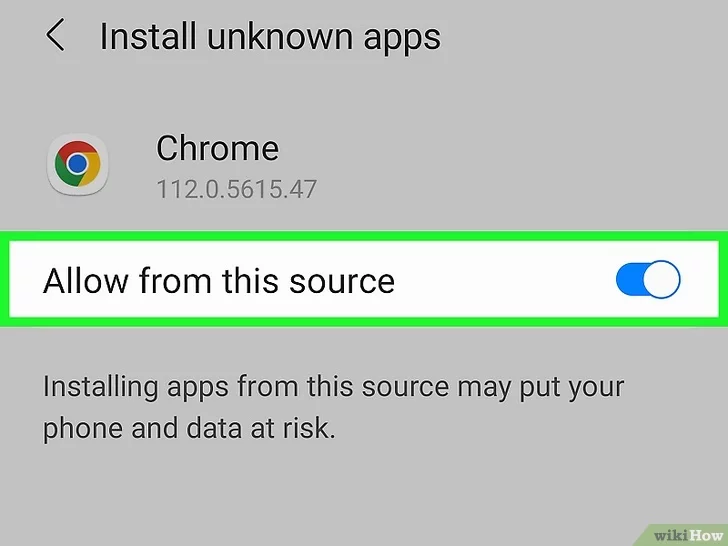
Or install the app — first allow the source. In Android settings, turn on “Allow from this source” for the browser you downloaded with.
-
Open the downloaded APK and tap Install. Android asks you to confirm before anything is installed.
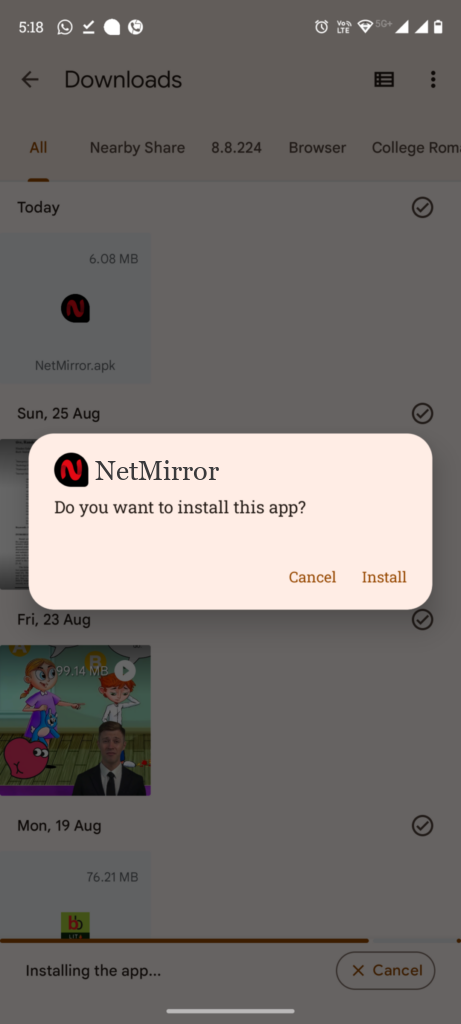
-
Tap Open when it finishes. Android confirms with “App installed” and you go straight into the library.
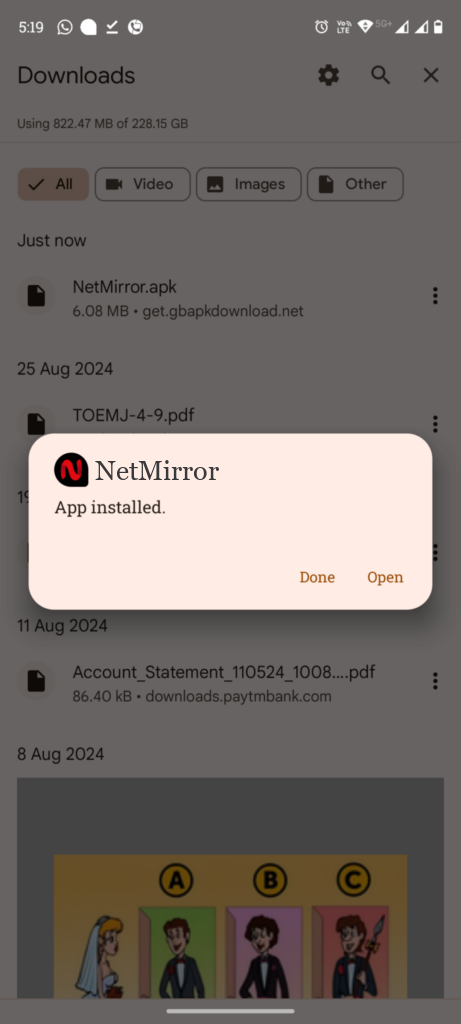
The “allow from this source” toggle is a normal Android permission for installing outside the Play Store. You can switch it back off once the install finishes.
TV and Fire Stick
Android TV, Google TV and Fire Stick get their own remote-friendly build rather than the browser version — a big-screen grid you can drive with the D-pad.

What the NetMirror Web App gives you
One search, every platform
Type a title once and results come back from all eight catalogues together, instead of checking each service in turn.
HD up to 4K
Quality adapts to your connection automatically, and you can pin it manually if you would rather control it.
Two playback servers
If a title refuses to load on the main server, the Beta second server often has it, sometimes with extra audio tracks and subtitles.
Multiple audio languages
Hindi, Tamil, Telugu, Korean and more, on the titles that carry more than one track.
Picture-in-Picture
Pop the player into a floating window and keep working in another tab while it plays.
Full title details
Rating, release year, runtime, genre tags, synopsis and full cast, all before you commit to pressing play.
Anime and K-drama sections
Dedicated tabs for anime and Korean drama, rather than burying them inside a general catalogue.
No ads in the player
No pre-roll clip, no mid-roll break and no banner sitting over the video.
NetMirror Web App or the Android app?
They share the same library, so the decision comes down to how you watch.
Choose the web version if you are on a desktop, a Mac or an iPhone, if you would rather not install anything, or if storage is tight. It also updates itself — there is no build to keep current.
Choose the Android app if you want offline downloads for a flight or commute, or background playback. Those two things need an installed app, and the browser cannot do them. If that sounds like you, the NetMirror APK download and setup guide walks through the install.
How it compares to paid subscriptions
| NetMirror Web | Separate subscriptions | |
|---|---|---|
| Services covered | Eight, in one place | One app per service |
| Cost | Free | Adds up quickly across eight |
| Account needed | None on net27.cc | Required for each service |
| Searching | One box, all catalogues | Each app searched separately |
| Ads | None | Present on most cheaper tiers |
| Install | None — any browser | Every app, on every device |
Is NetMirror Web safe to use?
From a device-security point of view, the browser version carries less risk than any installed app, for a simple reason: nothing lands on your device. There is no APK, no permissions to grant and no background process. Pages load over HTTPS, and guest mode means you are not handing over an email address or payment details to start watching.
A few sensible habits still apply. If you do install the Android app, take it from the official link rather than a random APK mirror, and turn the “install unknown apps” permission back off afterwards. Keep your browser updated. And if a page ever asks you to install a codec, a player update or an extension to continue, close it — that is a standard malware pattern and no legitimate streaming page needs it.
If something is not working
- The address will not load
- Nine times out of ten the domain has rotated or your ISP has blocked it. Fall back to net77.cc — just be aware that one asks you to sign in before it shows the library. If your whole network blocks both, a reputable VPN usually gets you through.
- I am being asked to sign in
- Then you have landed on net77.cc, the backup address, which gates the catalogue behind an account. Go back to net27.cc and the library opens without one.
- Constant buffering
- Open the gear icon in the player and drop the quality from Auto to 720p. Auto often reaches for a bitrate your connection cannot sustain. Closing other tabs and paused downloads helps too.
- One title will not play
- Switch to the second (Beta) server from the watch screen. If other titles play normally, it is that specific source rather than your setup.
- No sound, or the wrong language
- Check the audio track in the player settings — some titles default to a language you were not expecting. Then confirm neither the player nor the device is muted.
- Subtitles missing or drifting
- Subtitle availability varies by title. Where they exist, the player settings let you enable them and nudge the timing if they run ahead or behind.
- Picture-in-Picture or casting does nothing
- Both behave best in Chrome, Edge and Safari. Firefox support is patchy, so switch browsers if you rely on them.
Small things that make it better
- Cast it to the TV. Chrome’s Cast and Safari’s AirPlay both work, so you do not need the TV build to watch on a big screen.
- Cap the quality on mobile data. Pinning 480p in the player settings saves a surprising amount of data on a long episode.
- Press F for full screen, Esc to come back. Faster than aiming for the icon.
- Bookmark a tracking page, not the domain. Since the address rotates, a bookmark to the raw domain will eventually go dead.
Frequently asked questions
Does NetMirror Web cost anything?
No. The browser version is free to use and does not ask for card details at any point.
Do I need an account to watch?
On the main address, net27.cc, no — it opens straight into the library and you can start watching immediately. The backup address, net77.cc, is the exception: it puts a sign-in step in front of the catalogue, so you will need an account there. If you would rather not register at all, stay on net27.cc.
Which devices does it work on?
Anything with a modern browser: Windows, macOS, Android, iPhone and iPad. Android TV, Google TV and Fire Stick have their own remote-friendly build instead.
Why does the web address keep changing?
Internet providers periodically block the live domain, usually following a court order or a DMCA complaint. When that happens a new address takes over, which is why the domain rotates every few weeks.
Are there ads?
Not in the player. There is no pre-roll, no mid-roll and no banner over the video.
Can I download titles for offline viewing?
Not in the browser. Offline downloads require the Android app, which can also resume a download after a long pause.
What is the difference between NetMirror Web and the app?
Same library, different container. The web version installs nothing and runs anywhere; the app adds offline downloads and background playback, and is Android only.
Is the NetMirror Web App the same thing as NetMirror Web?
Yes — they are two names for the same product. People say NetMirror Web App because it behaves like an app once you open it, with a watchlist, a real player and a Home Screen icon on iPhone. There is no separate download behind the name.
Do I need a VPN?
Not usually. A VPN only becomes useful if your ISP has blocked both mirrors on your network.
The short version
If you have ever wanted to check whether something is on Netflix, then Prime, then Hotstar, one after another, the appeal here is obvious: one search box covering eight catalogues, no install, no sign-up, and a player that behaves properly. The one thing to stay on top of is the rotating address — bookmark a page that tracks it and you will not get caught out.
Ready to watch?
Opens in your browser on net27.cc. Nothing to install, no account to create.